
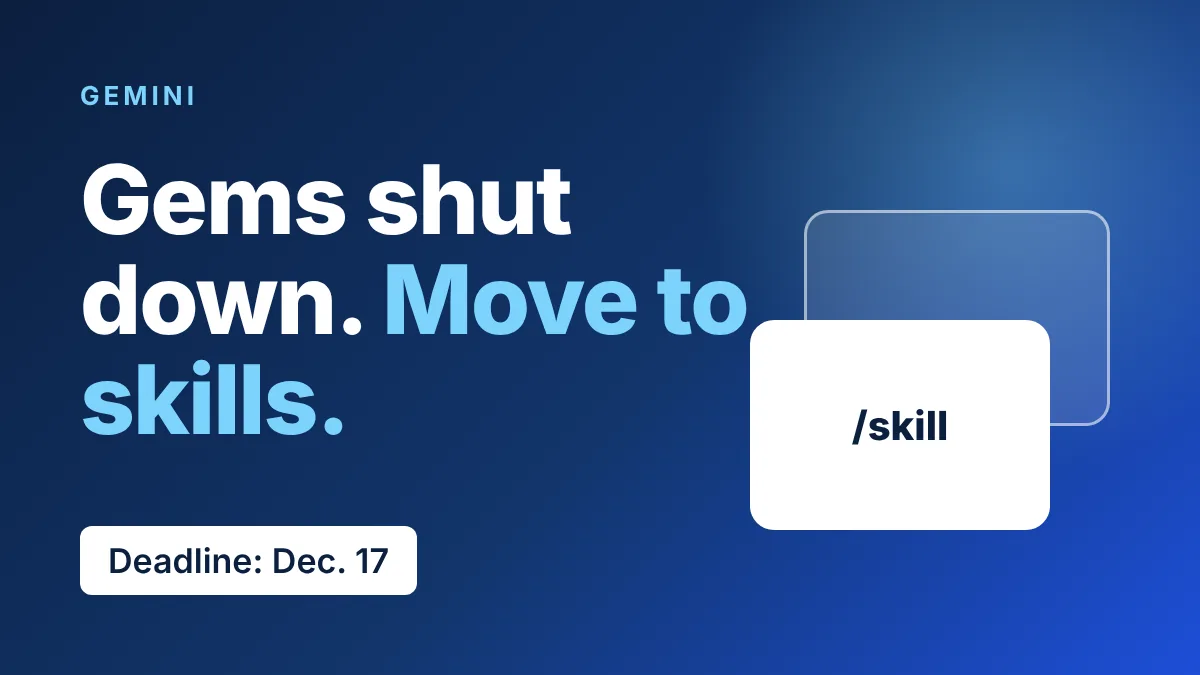
The Gemini Gems shutdown started on November 17, and if you use Gems on an adult personal Google account you have until December 17 to rescue them. Right now your Gems are read-only: you can open them, but you can’t use or edit them. Google will convert them to Gemini skills for you, though some details may not survive the trip.
Here’s the short version, straight from Google’s help page:
- November 17, 2026: Gems become read-only for adult personal accounts.
- December 17, 2026: Gems are removed from Gemini Apps, so download your Knowledge files before then.
- Google converts Gems to skills automatically, or you can do it yourself sooner.
- Workspace business, enterprise and nonprofit accounts keep Gems until March 2027 at the earliest; education until June 2027.
If you only skim one section, make it the dates above. The December cutoff is the one that can cost you files.
What the Gemini Gems shutdown means for your account
Gems were Gemini’s saved personas: a name, some instructions and optional uploaded files. Skills do a similar job, but you call them with a slash command, and Gemini can also pick one up on its own when your request fits.
The timeline depends on what kind of account you have. Personal accounts move first, and Workspace customers get far more runway.
| Account type | What happens | When |
|---|---|---|
| Personal, 18 and over | Gems turn read-only on Nov. 17, then are removed and recreated as skills | Removal Dec. 17, 2026 |
| Personal, under 18 | Gems move to skills “at a later date” | No date announced |
| Workspace business, enterprise, nonprofit | Skills fully replace Gems | No sooner than March 1, 2027 |
| Workspace education | Skills fully replace Gems, including in Classroom | No sooner than June 1, 2027 |
One wrinkle: some early coverage, like Chrome Geek, said Gems would stay editable from Settings after November 17. Google’s own support page says otherwise for adult personal accounts, so trust the read-only version. The Workspace dates come from Google’s Workspace admin page.
How to move a Gem to a skill by hand
Auto-conversion is fine for throwaway Gems. For the ones you rely on, converting manually gives you control over what comes across. Do this on a computer at gemini.google.com:
- Open Gems from the sidebar (check under More if it’s hidden), then open the Gem’s edit view and download everything under Knowledge.
- Go to Customize > Skills and choose Create > Create manually.
- Copy over the Gem’s name, description and instructions. The skill name has to be lowercase with hyphens, like
trip-planner. - Select Create, then download the new skill. It arrives as a .zip containing a
SKILL.mdfile. - Put
SKILL.mdin a folder named exactly like the skill, add your files, then use More options > Replace skill and upload the folder.
Those steps are the ones Google’s help page lists. According to AndroidPure, file uploads only work in the Gemini app on Mac and on the web, so don’t plan to do this from your phone.
Once a skill exists, type / followed by its name in any chat. You can combine several skills in one conversation.
What skills can do that Gems couldn’t
The shutdown lands alongside two upgrades. On November 16, 9to5Google reported that skills can now pull in files from your device, Google Drive, Gemini Notebook and Google Photos, up to 100 MB per skill.
Drive and Notebook files update in real time, so a skill always reads the latest version of your brand guide or team handbook. Sharing is also on the way: from Customize > Skills on the web you can share a skill with View or Edit access, and recipients get an email so they can review it first. Google says both are rolling out over the coming weeks, so you may not see them yet.
Here’s how the two features compare:
| Feature | Gems | Gemini skills |
|---|---|---|
| How you start one | Pick it from the Gem manager | Type / and the skill name, or let Gemini apply it |
| Files as context | Uploaded Knowledge files | Device, Drive, Notebook and Photos, up to 100 MB |
| Sharing | Through Google Drive permissions | View or Edit permission, with an email invite |
| Default tools like Canvas and Deep Research | Supported | Not supported yet |
The slash-command design should feel familiar if you’ve seen how other AI tools handle reusable instructions. If you’re already tidying up your Gemini setup, our guide to Gemini’s new chat history and AI training switches covers the privacy side of the same app.
What won’t carry over when Google converts your Gems
Automatic conversion has limits, and Google lists them plainly. Gems with these traits are the ones to convert by hand and double-check:
- Files over 100 MB in total: Google removes the largest files first.
- Unsupported file types: GitHub files, audio, video, older .doc, .xls and .ppt files, and archives like .zip and .7z.
- Gem tools such as Create video, Create music, Canvas, Deep research and Guided learning.
- Anything past 100 active skills. You can create unlimited skills, but only 100 can be active at once.
The practical catch is the tool gap. If your favorite Gem leaned on Canvas or Deep Research, a skill won’t reproduce it today, and you may want to keep those prompts saved somewhere else. Gems that were shared with you also show up as inactive on your Skills page until you accept them, per AndroidPure.
Gemini keeps adding agent-style abilities, like the task automation now reaching the UK, India and Japan, so skills are likely to gain more tool support over time. Google hasn’t committed to a date for that.
Frequently Asked Questions
Can I still use my Gems after November 17?
Not on an adult personal account. Google says you can view your Gems but not use or edit them, and you can’t create new ones.
What happens if I do nothing before December 17?
Google recreates your Gems as skills automatically. Some features may not carry over, and files over the size limit or in unsupported formats get dropped, so download your Knowledge files anyway.
Do I need a paid plan for Gemini skills?
Reports at launch conflicted. 9to5Google said free users have access, and Google’s help pages list the Gemini app as available to all Workspace editions and ages. Open Customize > Skills in your own app to see what you have.
What about Gems I shared with other people?
Google says Drive permissions and sharing settings on a Gem transfer to the matching skill. Native skill sharing in the Gemini app is still rolling out, so recipients may need to wait for it.
Where do I find my skills?
Open Customize > Skills in the Gemini app on the web. In a chat, type / and start the skill’s name.
My take: convert the Gems you actually use this week
Don’t wait for the automatic conversion. Spend 20 minutes now on the two or three Gems you open every week, convert them by hand, and test them with a real task. Let Google handle the rest, and delete the test Gems you forgot about first. The Gemini Gems shutdown is annoying mainly because December 17 comes fast, not because skills are worse.
Leave a Reply