

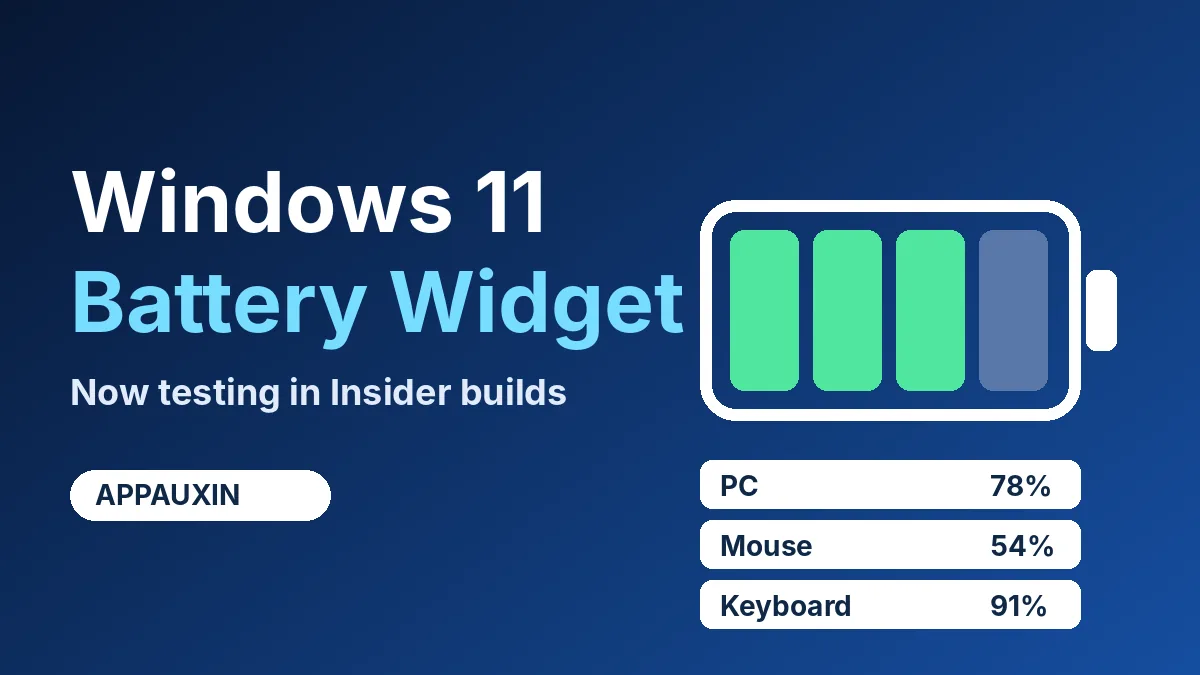
The Windows 11 battery widget is finally showing up in Insider builds. It puts your PC’s battery and your wireless mouse, keyboard, and stylus levels in one list on the Widgets board. If you’re not an Insider, you’ll have to wait.
Microsoft hasn’t said when it reaches everyone. Here’s what it does, where it is today, and what’s still unclear.
Quick facts:
- Spotted in Experimental Insider builds 26340.9616 and 28120.3181, released 7 October 2026.
- Shows battery levels for your PC and connected Bluetooth devices like mice, keyboards, and styluses.
- Add it from “Add widgets” on the Widgets board.
- Rolling out to small Insider groups first, with no public release date.
That’s the short version. The details below matter if you want to try it.
What the Windows 11 battery widget shows
It’s a simple vertical list. Your PC sits at the top, followed by each connected wireless device with its name, icon, and battery percentage. According to Windows Central, which first found it in preview code, it also shows charging state and whether energy saver is on.
It supports light and dark themes, so it should match the rest of your setup.
Until now, checking a dying mouse meant opening Settings, then Bluetooth & devices, then hunting for the right entry. One glance at a widget is faster.
How to find it in Insider builds
Open the Widgets board, choose “Add widgets,” and look for Battery Status. That’s the path described by Windows Mode for the 7 October builds.
Don’t panic if it’s missing. Microsoft usually turns new Windows 11 update features on for a few testers first, then widens the group over weeks.
| Release channel | Battery widget status |
|---|---|
| Experimental Insider (26340.9616, 28120.3181) | Available to a small group |
| Beta Insider | Not listed yet |
| Stable Windows 11 | Not available |
The Beta channel only got general fixes in that drop. Plan on waiting if you stay off Experimental builds.
Lock screen and desktop: what’s still unclear
Windows Central reported that the widget could also sit on the lock screen. Guru3D, citing the same report, is inconsistent about whether it works on the desktop or the lock screen.
The 7 October release notes only mention the Widgets board. Treat lock screen support as a possibility, not a promise, until Microsoft confirms it.
The same goes for dates. In September the feature wasn’t functional yet, so its jump into test builds is real progress. It’s still not a launch.
What to check if a device doesn’t show up
Battery reporting depends on the accessory, not just Windows. Windows already reads battery levels from many Bluetooth devices in Settings, so a device that shows a percentage there has the best shot of appearing in the widget. Microsoft hasn’t confirmed how the widget gets its data, though, so treat that as a reasonable guess.
Mice and keyboards that connect through a proprietary USB dongle often report battery through the maker’s own app instead. Those may not appear at all.
A quick checklist if your gear is missing:
- Confirm the device is paired over Bluetooth, not a dongle, under Settings > Bluetooth & devices.
- Check that the device shows a battery percentage in that Settings page.
- Remove and re-add the widget, then restart the Widgets board.
If a device never reports its level in Settings, the widget is unlikely to fix that. Expect gaps early on, since this is test software.
Why this small feature is worth caring about
Battery surprises are annoying. A dead wireless mouse in the middle of a call is the classic one.
The widget arrives alongside other Insider changes. Microsoft is also testing a faster search box, and our guide to Windows 11 search actions shows how it can flip settings like dark mode without opening an app. Together, these changes make Windows feel less like a maze of menus.
If you’d rather not run Insider builds, the optional KB5124010 preview update is the safer way to sample upcoming changes.
Frequently Asked Questions
Is the Windows 11 battery widget available to everyone?
No. It’s only in Experimental Insider builds right now, and only for some testers. Microsoft hasn’t announced a public date.
Which devices does the battery widget show?
It shows your PC plus connected Bluetooth peripherals such as mice, keyboards, and styluses. Microsoft hasn’t published a full compatibility list, so some devices may not report their level.
Can I put the battery widget on my lock screen?
Maybe later. Windows Central reported lock screen support from preview code, but the 7 October notes only mention the Widgets board.
Do I need to install anything to get it?
You need to be on the Experimental Insider channel and wait for it to reach your device. Joining the channel doesn’t guarantee instant access.
Should you chase it?
Probably not. It’s handy, but it isn’t worth moving a daily-use PC onto Experimental builds, which can be unstable. If you already test Insider builds on a spare machine, add the widget and see whether your peripherals report correctly. Everyone else can wait for the feature to land in Beta, which is a better sign it’s close.
Leave a Reply