

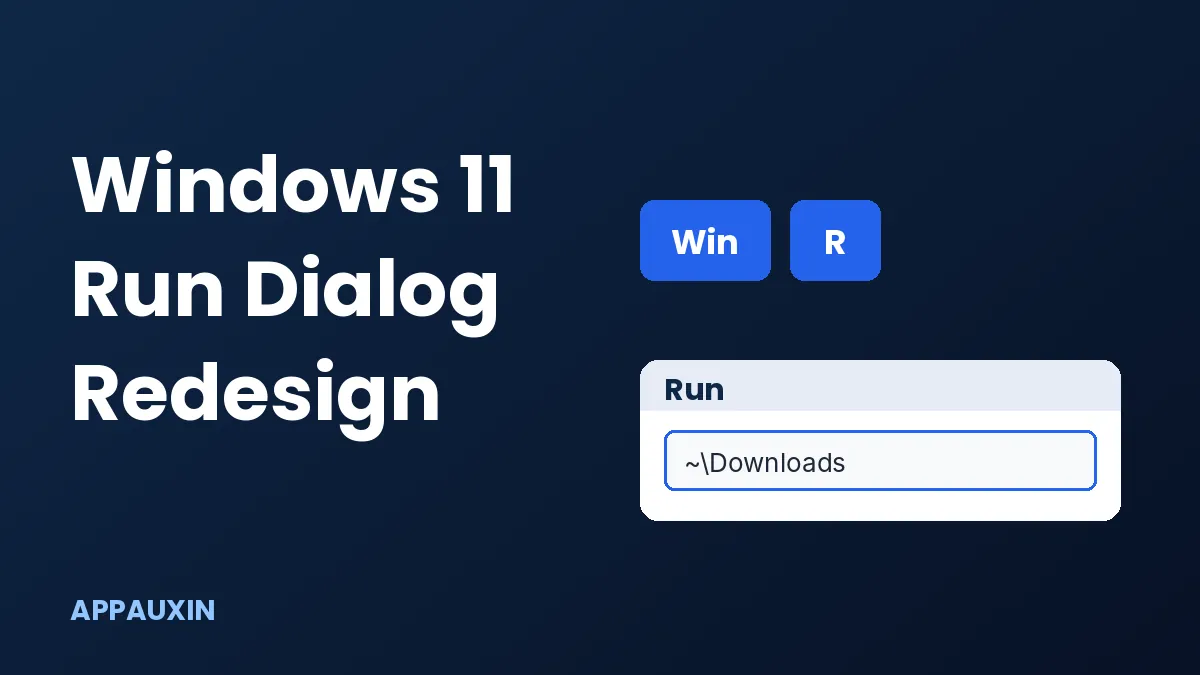
The Windows 11 Run dialog is getting its first real redesign since Windows 95, and you can try it now if you’re on the Release Preview channel. Press Win + R after flipping one setting and you get a bigger box, recent commands and app icons, but no Browse button.
It’s opt-in for now, so nothing changes on your PC unless you turn it on.
Here’s the short version before we get into the details:
- Microsoft pushed the new Run dialog to Release Preview Insiders on November 13, 2026 (KB5132057 for 25H2 and 26H2).
- You enable it under Settings > System > Advanced; Win + R still opens the old box otherwise.
- The Browse button is gone, and typing
~\jumps to your user folder. - Third-party reports point to a December rollout, but Microsoft hasn’t confirmed a date.
If you only use Run to launch a handful of commands, that’s all you need to know. The rest covers how to turn it on and what you give up.
How to turn on the new Windows 11 Run dialog
You need a PC enrolled in the Windows Insider Program on the Release Preview channel, running 25H2 or 26H2. Stable-channel PCs won’t see the option yet.
Install the Release Preview update (KB5132057, builds 26200.10066 and 26300.10066), then open Settings, go to System, then Advanced, and switch on the new Run dialog toggle. According to Helpdesk Geek, it does not replace Win + R automatically.
Before this, Microsoft only offered it in the Experimental channel. Its own Windows Command Line blog post from May described that opt-in route, so Release Preview is a big step toward a wide release.
Because it’s a pre-release build, back up first. The sources I found don’t list removal steps, though switching the toggle off should send you back to the classic box.
What’s different about the new Run dialog
The new box follows Fluent Design, supports dark mode, and looks like it belongs in Windows 11. The old one looked like it belonged in Windows 95 because, well, it did.
The changes you’ll notice day to day are in the table below.
| Feature | Classic Run box | New Run dialog |
|---|---|---|
| Command field | Small, single line | Larger text box |
| Recent commands | Drop-down history | List shown above the text box |
| App icons | None | Shown when a command matches an app |
| Browse button | Yes | Removed |
| Home folder shortcut | Not available | Type ~\ to jump to your user directory |
| Appearance | Legacy dialog | Fluent Design, dark mode support |
Seeing recent commands as a visible list is the quiet win. You no longer have to click a drop-down arrow to remember what you typed last week.
Why Microsoft killed the Browse button
Usage data made the decision easy. Microsoft’s telemetry showed the Browse button was clicked by just 0.0038% of a 35-million-user sample, per the same dev blog post.
The team also saw people pasting text into Run just to strip formatting, which is a clever habit and apparently a common one.
If you do rely on Browse, the workaround is simple. Drag a file or folder path into the box, or paste the path from File Explorer’s address bar.
Is the new Windows 11 Run dialog actually faster?
Barely, on paper. Microsoft reports a median time-to-show of 94ms versus 103ms for the old dialog, a gap you’ll never feel.
The bigger story is the plumbing. The new Run box is a C# and WinUI 3 app compiled with .NET AOT, and it shares code with the run command provider in PowerToys Command Palette. That makes it easier for Microsoft to keep updating it without waiting on a full Windows release.
Microsoft says it expects timing to improve further but hasn’t given targets. It also hasn’t said whether the classic dialog will be retired.
When will everyone get the Windows 11 Run dialog?
Nobody outside Microsoft knows for sure. Helpdesk Geek relays a Windows Latest report that the redesigned Run box will reach stable PCs through a late-November optional update, with broader delivery in the December 8, 2026 cumulative update.
Treat those as third-party reports, not confirmed dates. Microsoft stages rollouts, so even after you install an update the toggle can show up late or not at all on your PC.
The same Release Preview update also includes a redesigned Search with inline actions and faster File Explorer search from This PC, which we covered in our look at the Windows 11 search redesign. The 26H1 build adds a customizable context menu, which we walked through in our right-click menu guide.
Frequently Asked Questions
How do I open the new Run dialog in Windows 11?
Press Win + R, the same shortcut as always. If you’ve turned on the new Run dialog setting under Settings > System > Advanced, the redesigned box opens instead of the classic one.
Does the new Run dialog have a Browse button?
No. Microsoft removed it after telemetry showed almost nobody used it. Paste a path or drag one in instead.
Can I switch back to the old Run dialog?
Since the redesign is opt-in, turning the setting off should bring the classic box back. Microsoft’s documentation I reviewed doesn’t spell out removal steps, so back up before testing.
Is the new Run dialog available on stable Windows 11?
Not yet. It’s in Release Preview for 25H2 and 26H2 Insiders, and Microsoft hasn’t confirmed a general release date.
Should you switch it on?
If you live in Win + R, yes, once the update reaches you through normal channels. The visible recent-commands list and the ~\ shortcut are small but real time savers. I wouldn’t move a work PC to Release Preview just for this, though; wait for the stable rollout and flip the toggle then, since it’s the lowest-risk way to get the redesign.
Leave a Reply