

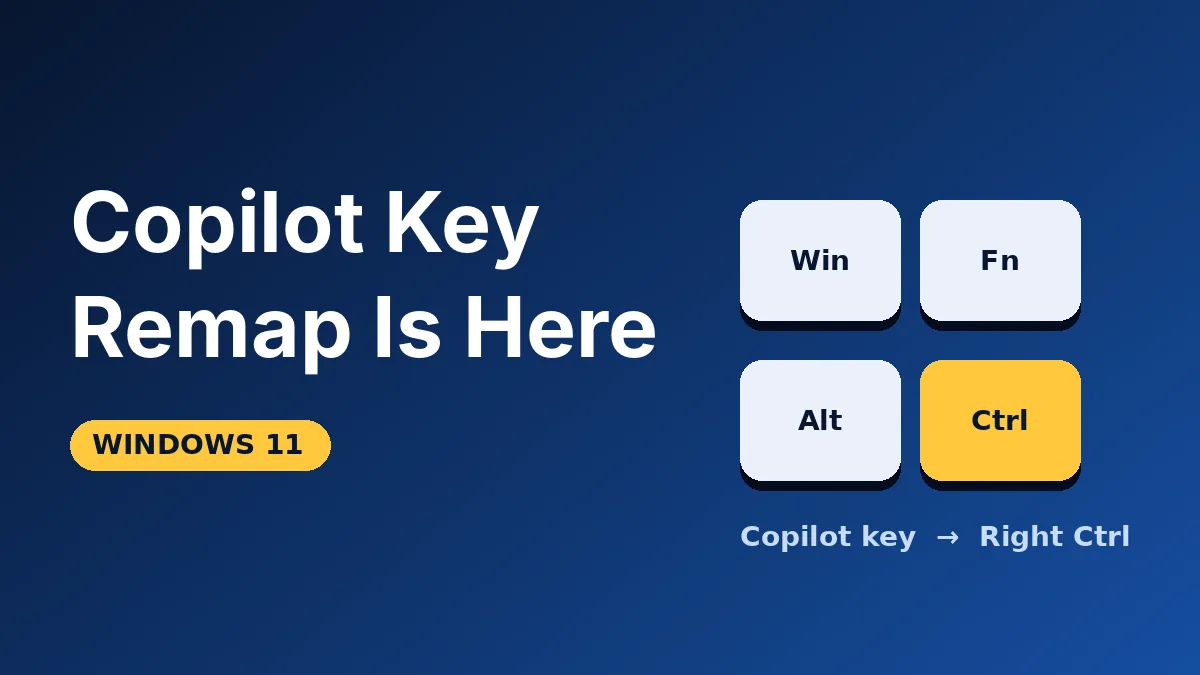
If your laptop has a dedicated Copilot button you never press, the Copilot key remap in Windows 11 is for you. You can now make that key act as Right Ctrl or as the Context Menu key, straight from Settings.
Microsoft confirmed the change on its support site, and Windows Latest reports it arrived in the October 2026 Patch Tuesday update.
Here are the facts worth knowing before you start:
- The Copilot key can become Right Ctrl or the Context Menu key.
- The setting lives in Settings > Bluetooth & devices > Keyboard.
- Windows Latest says KB5127648 includes it for Windows 11 24H2, 25H2 and 26H2.
- It only shows up on PCs that have a dedicated Copilot key.
If you don’t have the key, you won’t see the option, and that’s normal.
What the Copilot key remap changes
Until now, the Copilot key did one thing: open Copilot. Many people hated that, because on newer laptops it sits where Right Ctrl used to be.
Microsoft’s own support page now acknowledges the issue and lists the two new choices. You can swap the key’s job without installing anything extra.
Anyone who relies on Right Ctrl shortcuts will feel this most. The key now sits in the spot where your hand expects Ctrl, so turning it back into Ctrl removes a daily annoyance.
The key itself doesn’t disappear or change shape. Only what Windows does when you press it changes, and you can switch back to Copilot at any time.
How to change the Copilot key in Settings
The steps take under a minute. Make sure your PC has the October 2026 update or later first.
- Open Settings and go to Bluetooth & devices.
- Select Keyboard.
- Find the Copilot key option and choose Right Ctrl or Context Menu.
Microsoft says the option appears only “when available,” so a missing setting usually means your hardware or update isn’t ready. Check Windows Update, then restart.
Windows 11 also changed other small things in the same update. Our guide to the customizable right-click menu covers a related one.
Right Ctrl or Context Menu: which should you pick?
| Option | Best for | Watch out for |
|---|---|---|
| Right Ctrl | Keyboard shortcuts, remote desktop, virtual machines | RCtrl+Win and RCtrl+Shift combos may not work |
| Context Menu | Keyboard-only right-click on files and text | Won’t help if you need a Ctrl key |
| Leave it as Copilot | People who actually use Copilot daily | Nothing changes |
If you type a lot or use shortcuts, Right Ctrl is the natural pick. If you mostly use the keyboard to open menus, Context Menu saves you a reach for the mouse.
Why Microsoft changed course
Microsoft pushed the Copilot key onto new keyboards in 2024. Many people found it replaced a key they used all the time.
According to Windows Central, Microsoft said the dedicated key breaks certain workflows and promised an option to restore Right Ctrl or Context Menu. That promise has now turned into a Settings toggle.
It’s a small fix, but it shows Microsoft listening to feedback on how the keyboard itself behaves, not just what the software does.
Gotchas to check before you change it
Microsoft lists one clear warning. If you pick Right Ctrl, shortcuts like RCtrl+Win and RCtrl+Shift won’t work as usual, so Microsoft suggests Left Ctrl for those.
The second gotcha is hardware. Options vary by manufacturer, firmware and keyboard design.
Some laptops ship with their own remap tool. Use either that tool or the Windows setting, not both, or the two can fight each other.
The same Windows Latest report says this update also adds Emoji 17.0, a “Preview anyway” button in File Explorer, and new touchpad gestures. If you haven’t updated yet, our Windows 11 26H2 rollout guide shows how to install it.
Frequently Asked Questions
Can I remap the Copilot key to any other key?
Not in Settings. Microsoft only lists Right Ctrl and the Context Menu key as options.
Why don’t I see the Copilot key setting?
You may not have a dedicated Copilot key, or your PC may not have the update yet. Microsoft says the setting appears only when available.
Does the Copilot key remap work on Windows 10?
Microsoft’s support page only covers Windows 11, so don’t count on it for Windows 10.
Can I still open Copilot after remapping the key?
Yes, as long as you still have another way to launch it, such as the Copilot app. The key itself just stops doing it once you remap it.
Our verdict: worth the 60 seconds
If you don’t use Copilot daily, make the swap. Right Ctrl is the more useful choice for most people, and it brings back a key many of us missed.
Leave a Reply