

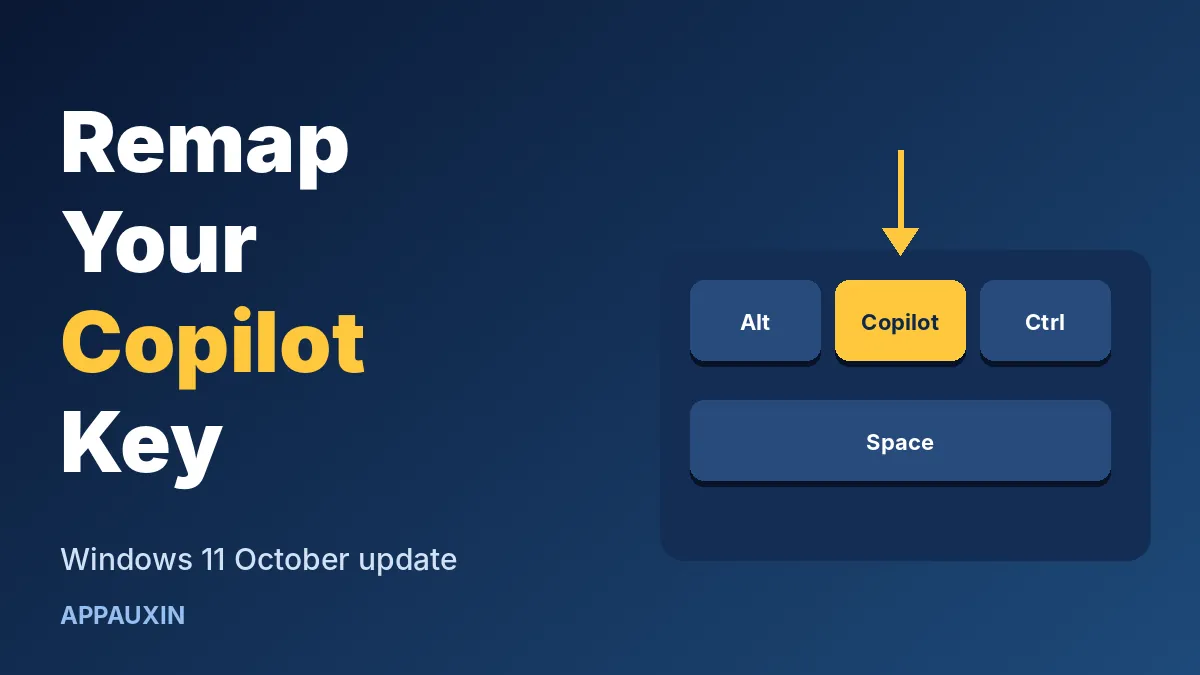
If your Windows 11 keyboard has a Copilot key, you can now remap Copilot key behavior and get your Right Ctrl or Context Menu key back. Microsoft is rolling the option out in its October 2026 update, and you’ll find it under Settings. It’s a small change, but it fixes a real annoyance for shortcut fans and screen reader users.
Here are the essentials before the details.
- Update: the Windows 11 October 2026 update (KB5127648), released October 13
- Who it’s for: anyone with a Windows 11 PC that has a dedicated Copilot key
- New choices: Right Ctrl or Context Menu
- Where: Settings > Bluetooth & devices > Keyboard
- Rollout: gradual, so it may not show up on your PC yet
That’s the short version. The rest covers how it works, what can go wrong, and whether you should bother.
Why the Copilot key annoyed so many people
PC makers started adding a dedicated Copilot key in 2024, usually where Right Ctrl or the menu key used to sit. For people who never touch it, no harm done. For everyone else, it quietly broke habits.
Microsoft admitted as much. According to Windows Central, a May 2026 support document said the key disrupted workflows for people who rely on those keys for shortcuts or assistive tools like screen readers.
Until now, the main workaround was a third-party remapping tool. That works, but it’s one more app running in the background.
Who gains the most from the change
Accessibility is the biggest win. Screen reader users often depend on the Context Menu key, and losing it to a Copilot button made daily tasks slower.
Power users come next. Developers, editors, and spreadsheet heavy users lean on Right Ctrl for one-handed combos, and muscle memory is hard to retrain.
Even casual typists benefit. An accidental press of a key you never use should not pop open an AI panel in the middle of a document.
How to remap Copilot key in Windows 11
Once the update reaches your PC, the steps are short. Open Settings, go to Bluetooth & devices, and pick Keyboard. Look for the Copilot key option and choose what you want it to do.
Microsoft’s own support page says the setting applies to Windows 11 PCs with a Copilot key. It also says options vary by manufacturer, firmware, and hardware design, so your menu may look slightly different from a friend’s.
If your laptop maker ships its own Copilot key setting, pick one. Microsoft advises using either the Windows setting or the device setting, not both.
Which option should you pick?
Only two new choices exist, so this is easy to compare side by side.
| Option | Best for | Watch out for |
|---|---|---|
| Right Ctrl | Keyboard shortcut users and anyone who misses the old key | RCtrl+Win and RCtrl+Shift combos won’t work normally. Use Left Ctrl for those. |
| Context Menu | Screen reader users and people who open right-click menus from the keyboard | You lose the Copilot shortcut unless you launch it another way. |
| Leave it alone | Anyone who actually uses Copilot | Nothing changes. |
Why this matters: the Right Ctrl caveat catches people out. If you remap and a familiar shortcut stops working, switch to Left Ctrl for that combination.
What else is in the October update
The Copilot key option isn’t alone. Windows Latest tested the release and listed several other changes, all arriving gradually.
- File Explorer can preview downloaded PDFs again, and HTML files get a “preview anyway” button.
- Touchpads gain single-finger vertical scrolling.
- A new accessibility option opens apps maximized.
- Fixes cover File History, Bluetooth audio, and built-in cameras that stopped working in apps.
If you’re still deciding which build you’re on, our guide to getting Windows 11 26H2 explains the version names. You may also like the Windows 11 search quick actions rundown for another small time-saver.
If the setting is missing on your PC
Gradual rollout means some PCs get features days or weeks after others. First, check that the October update is installed in Windows Update.
If it is and the option still isn’t there, wait a little. Microsoft staggers these releases, and forcing it with unofficial tricks isn’t worth the risk for a single key.
Also note that desktops and older laptops without a Copilot key won’t see any change, because the setting is built for that hardware.
Frequently Asked Questions
Can I disable the Copilot key completely?
Microsoft’s support page lists only Right Ctrl and Context Menu as the new choices, not an off switch. Picking either one takes Copilot off that key.
Where is the Copilot key setting in Windows 11?
It sits under Settings > Bluetooth & devices > Keyboard, once the update has reached your PC.
Will remapping break my keyboard shortcuts?
Only if you pick Right Ctrl and use RCtrl+Win or RCtrl+Shift. Microsoft suggests Left Ctrl for those.
Do I need a third-party tool anymore?
Not for these two options. Windows already lets you point the key at Search or another app, so most people can skip extra software.
My take: if you use Copilot daily, leave the key alone. If it has never opened anything you wanted, remap it to Right Ctrl or Context Menu today and enjoy a keyboard that behaves the way your fingers expect.
Leave a Reply