

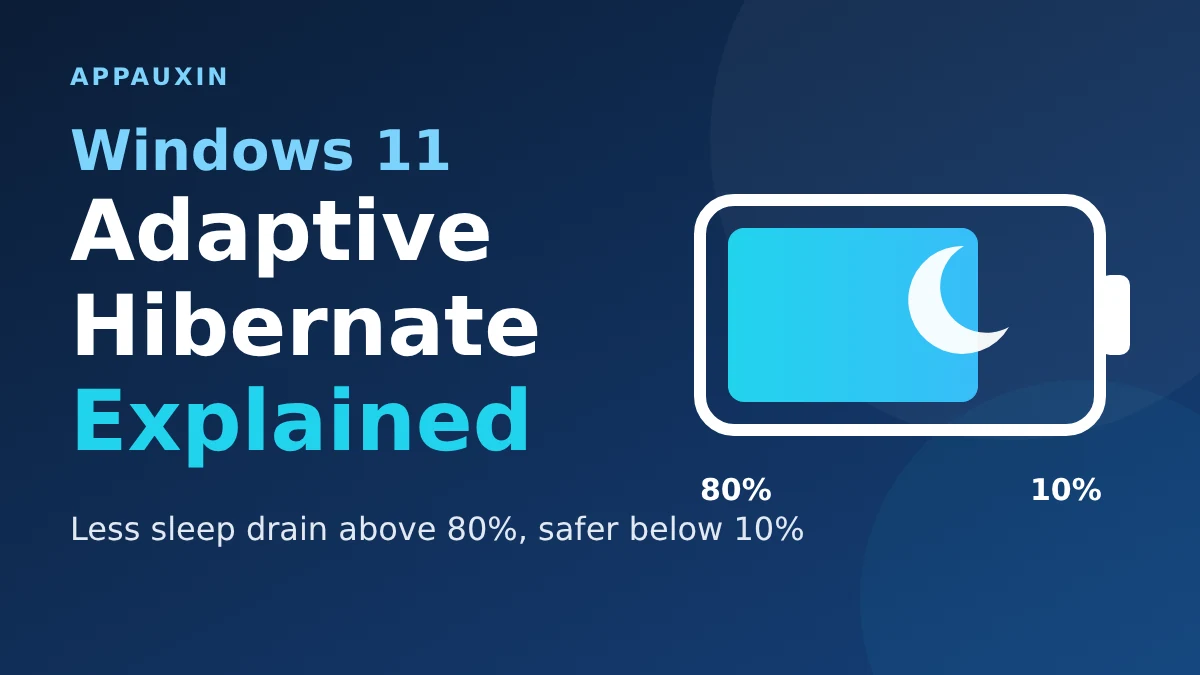
Windows 11 adaptive hibernate is Microsoft’s newest attempt to stop laptops from quietly bleeding battery while they sleep. An optional update released on October 28 changes when your laptop switches from Modern Standby to full hibernation: it waits longer when the battery is high and gives up sooner when it’s nearly empty. It’s a gradual rollout, so you may not have it yet.
Here’s the short version before we get into the details:
- Update: KB5127936, an optional preview for Windows 11 25H2 and 26H2, released October 28, 2026.
- Builds: 26200.9818 (25H2) and 26300.9818 (26H2).
- The change: less hibernation while the battery is above 80%, and hibernating sooner below 10%.
- Rollout: gradual, so availability varies from one device to the next.
Those two thresholds decide whether you open the lid to an instant desktop or to a flat battery, which is why this small tweak matters.
Why your laptop loses battery while it sleeps
Most newer laptops use Modern Standby instead of old-style sleep. The PC stays in a low-power idle state so it can wake instantly and keep a few background tasks and network connections alive.
The catch is that “low power” isn’t “no power.” Windows Latest described overnight drops of 15% or more on some laptops sitting idle.
Hibernation is the cure on paper. It saves your session to disk and powers down completely, so it costs almost nothing in battery, but it resumes more slowly. Windows has to decide when to make that switch, and according to OSnews, Modern Standby has struggled with that call, sometimes leaving a laptop drained by the time you open it.
What Windows 11 adaptive hibernate does now
Microsoft’s release notes for KB5127936 say the update “improves the adaptive hibernate policy to provide more instant-on resumes from Modern Standby.” The notes name two behavior changes, and nothing else.
| Battery level | What Microsoft says changes | What you’d likely notice |
|---|---|---|
| Above 80% | Less hibernation | The laptop stays in Modern Standby longer, so waking it should feel faster |
| 10% to 80% | Nothing described in the notes | Assume the old behavior until you test it |
| Below 10% | Hibernates sooner | A better chance of finding charge left, at the cost of a slower resume |
The trade-off is easy to see. With plenty of charge, Windows now favors instant resume. With little left, it protects what remains.
This isn’t brand new code. Windows Latest reported in August that the policy first showed up in Insider build 28120.2630 in the Experimental 26H1 channel, so it has been in testing for roughly three months before reaching the optional update.
How to get the update and check it landed
KB5127936 is optional, so Windows won’t push it on you. BleepingComputer says you can grab it from Settings > Windows Update > Check for updates, or from the Microsoft Update Catalog. You’ll need to click “Download and install” unless “Get the latest updates as soon as they’re available” is switched on.
Once it’s installed, these three checks tell you where you stand:
- Open Settings > Windows Update > Update history and look for KB5127936.
- Press Win+R, type
winver, and confirm your build is 26200.9818 (25H2) or 26300.9818 (26H2), or newer. - Open Terminal and run
powercfg /a. If you see “Standby (S0 Low Power Idle),” your laptop uses Modern Standby.
That last check matters most. If your laptop only lists the older S3 sleep state, this change likely doesn’t apply to you. If the install itself fails, our rundown of why the November Windows 11 update keeps failing covers the common errors.
Measure the difference yourself
Windows has a built-in tool for exactly this. Open an admin Terminal and run powercfg /sleepstudy, then open the sleepstudy-report.html file it creates. It lists recent Modern Standby sessions and how much battery each one used.
Note your battery percentage when you close the lid, check it in the morning, and compare a few nights. One night proves nothing, since a stray download or a Bluetooth device can skew a single result.
What Microsoft hasn’t said yet
The notes list adaptive hibernate under “Gradual rollout” and don’t say whether it’s on by default. They also give no idle times before hibernation kicks in, and no battery-savings numbers.
Skepticism is fair here. The OSnews headline says Microsoft “hopefully” fixes the problem, and some reader comments there report continuing drain and laptops that never sleep. Those are anecdotes, not verified results.
If you’d rather not depend on Microsoft’s tuning, there’s a sure-fire option for overnight trips: hibernate manually from the Start menu’s power button. If the option is missing, it can be enabled under Power Options > Choose what the power buttons do.
The same update also carried Windows 11’s cloud rebuild feature, which we covered in our cloud rebuild guide.
Frequently Asked Questions
What is adaptive hibernate in Windows 11?
It’s the policy that decides when a laptop in Modern Standby switches to full hibernation. KB5127936 retunes it based on how much battery you have left.
Does KB5127936 fix Modern Standby battery drain?
Microsoft doesn’t claim a fix. Its notes only describe changes at the 80% and 10% battery levels, so run a sleep study on your own laptop to see what changed.
Which Windows 11 versions get it?
Microsoft lists builds 26200.9818 for 25H2 and 26300.9818 for 26H2. It’s a gradual rollout, so it may not show up on every device right away.
Should I install the optional update or wait?
Optional previews are meant for early testing and normally reach everyone at the next Patch Tuesday. BleepingComputer also notes Microsoft’s warning that a limited number of devices may restart one extra time after Secure Boot certificate updates.
How do I know if my laptop uses Modern Standby?
Run powercfg /a in Terminal and look for “Standby (S0 Low Power Idle).” If only S3 is listed, your laptop uses the older sleep mode.
Should you install it?
If your laptop keeps coming out of the bag half-flat, install it and run the sleep study; it’s the cheapest experiment on offer. If sleep already works fine for you, let it arrive through normal updates. Either way, treat the 80% and 10% thresholds as a tuning change rather than a battery promise until your own numbers say otherwise.
Leave a Reply