

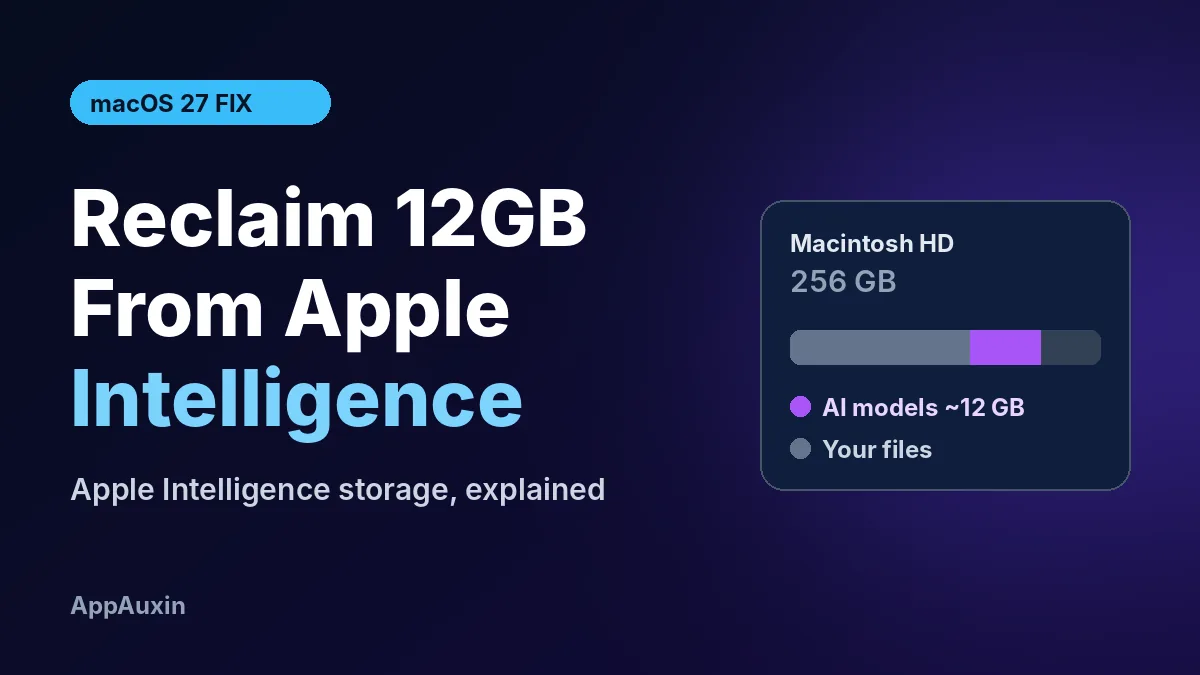
If your Mac suddenly feels short on space after the macOS 27 update, Apple Intelligence storage is the likely reason. The AI models download automatically and take roughly 10 to 14GB, and macOS 27 no longer gives you a single switch to turn it all off and get that space back. You have a few ways to handle it, from doing nothing to a free tool that removes the models completely.
Here’s the short version before we get into the details.
- Space used: Apple lists up to 14GB on M3 and newer Macs and up to 8GB on other models. Some users report much more.
- What changed: macOS 27 dropped the master Apple Intelligence toggle. You now turn features off one by one.
- The catch: turning features off does not delete the models from your drive.
- The workaround: a free open-source tool called RemoveMacAI can remove about 12GB and is reversible.
- Who should care most: anyone on a 256GB Mac, where 12GB is close to 5% of the whole drive.
Why Apple Intelligence Storage Grew So Much in macOS 27
Apple Intelligence runs a lot of its work on your Mac instead of in the cloud. That’s good for privacy, but it means the language and image models have to live on your SSD. macOS 27 downloads them in the background shortly after you update, whether you plan to use them or not.
Apple’s official numbers say up to 14GB for M3-and-later Macs and up to 8GB for older Apple silicon. Real-world readings are higher. WindowsForum collected user reports ranging from 14GB to just over 30GB, and Apple hasn’t explained the gap.
The bigger change is the settings. In macOS 26 you could flip one switch in Apple Intelligence & Siri and some of that space would come back. According to MacRumors, macOS 27 removed that master toggle, and disabling individual features leaves the models on disk.
How to Check How Much Space It’s Taking on Your Mac
Before you change anything, see whether this is actually your problem. A full drive can also come from photos, old iPhone backups, or app caches.
- Open the Apple menu and choose System Settings.
- Go to General, then Storage.
- Wait for the bar to finish loading, then look at the System Data and macOS sections.
There’s no line item labeled “Apple Intelligence,” which is part of the frustration. If System Data jumped by 10GB or more right after the macOS 27 update, the AI models are the most likely cause.
Your Three Options, Compared
You don’t have to rip anything out. The right choice depends on how tight your storage is and whether you use features like Writing Tools or the new Siri.
| Option | Space Freed | Effort | Best For |
|---|---|---|---|
| Leave it alone | None | Zero | Macs with 512GB or more and plenty free |
| Turn off features in Settings | Little to none | About 10 toggles across apps | People who want fewer AI prompts, not more space |
| RemoveMacAI tool | About 10–12GB | One Terminal command plus a profile install | 256GB Macs that are close to full |
The key point: only the third option actually gives you the space back. The built-in settings just stop the features from running.
How RemoveMacAI Reclaims Apple Intelligence Storage
RemoveMacAI is a free, MIT-licensed project on GitHub by developer Om Lahore. It installs a configuration profile that switches off Apple’s model-download service, deletes the downloaded models, and points any future download attempts at a closed local port so they don’t quietly come back.
Two things make it less scary than older hacks. It works with System Integrity Protection left on, and it doesn’t delete files from protected system folders by hand. AppleInsider reports it frees about 12GB, and the same script has a revert option that restores everything.
Installation is a single Terminal command from the project page, followed by approving the profile in the Device Management pop-up. Here’s what to do before you run it:
- Back up with Time Machine first, so you can roll back if anything acts up.
- Open the install script on GitHub and skim it. Piping any script straight into Terminal means trusting its author.
- Note the revert command from the project page so you have it handy later.
MacRumors adds an important warning. The profile settings the tool relies on were deprecated back in macOS 26.4. They still work on macOS 27.0.1, but a future update could break them without notice.
What Stops Working If You Remove the Models
This isn’t a free lunch. Removing the models turns off every on-device Apple Intelligence feature, not just the ones you dislike.
- The new AI-powered Siri, plus ChatGPT integration
- Writing Tools, notification summaries, smart replies, and inline predictions
- Genmoji, Image Playground, Photos Clean Up, and Spatial Photos
- Predictive code completion in Xcode
Regular dictation keeps working. If the Siri upgrade was the reason you updated, though, this trade isn’t worth it. We covered what that new Siri does in our macOS 27 Golden Gate guide.
If you’re giving any third-party tool deeper access to your Mac, it’s also worth reading how Apple is tightening Full Disk Access for AI agents. The same “check before you trust” rule applies here.
Frequently Asked Questions
How much storage does Apple Intelligence use on a Mac?
Apple says up to 14GB on M3 and newer Macs and up to 8GB on other supported models. Users on macOS 27 have reported anywhere from 14GB to around 30GB.
Can I turn off Apple Intelligence completely in macOS 27?
Not with one switch anymore. You have to turn off around ten separate features across System Settings and apps like Mail and Messages, and the models stay on your drive.
Is RemoveMacAI safe to use?
It keeps System Integrity Protection on and includes an undo option, which is a good sign. It’s still unofficial and unsupported by Apple, so back up first and expect it could stop working after a future macOS update.
Will the models download again after a macOS update?
With RemoveMacAI installed, download attempts are blocked and the profile reportedly survives updates. Without it, macOS will keep the models and may re-download them if they’re missing.
Our Take
If you have a 512GB or larger Mac, leave Apple Intelligence alone and clear out old backups or downloads instead. If you’re on a 256GB machine that’s constantly nagging you about space, and you never touch Writing Tools or Genmoji, RemoveMacAI is a reasonable fix, as long as you back up first and accept it might break later. Apple should bring back a real off switch that also frees the space. Until it does, this is the cleanest workaround available.
Leave a Reply