

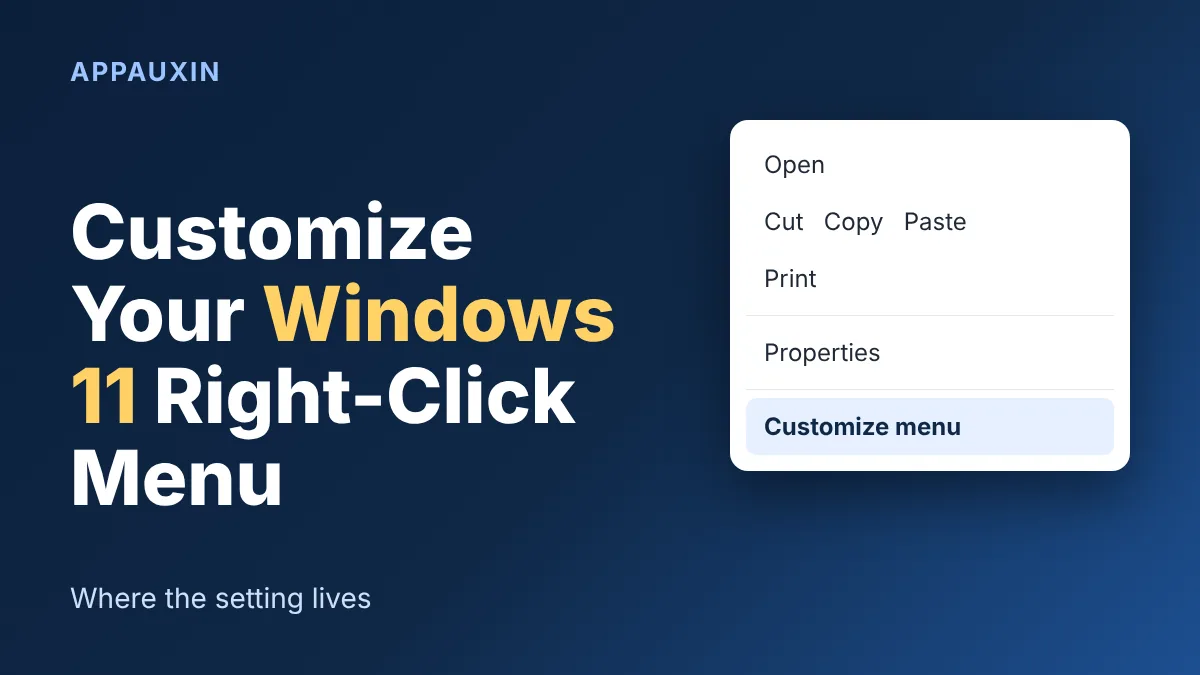
The Windows 11 context menu finally lets you decide what shows up when you right-click a file. Microsoft added a “Customize menu” option in the October 28 optional update (KB5127936), and the November 10 Patch Tuesday release (KB5132061) carries it to everyone on Windows 11 25H2 and 26H2, in waves.
You can push Properties to the bottom, drop commands you never touch, and bring Print back. It takes about two minutes, and you can undo it just as fast.
Here’s the short version before the details:
- The File Explorer right-click menu is faster and now has a “Customize menu” entry at the bottom.
- It first appeared in the October 28 preview update, then reached the November 10 Patch Tuesday release.
- Windows Latest lists the builds as 26300.9974 (26H2) and 26200.9974 (25H2).
- Windows 11 24H2 Home and Pro don’t get it.
- The settings live at Settings > Personalization > Context menu.
How to customize the Windows 11 context menu
The whole process starts from the menu itself, so you don’t have to hunt through Settings. Here are the steps:
- Open File Explorer and right-click any file.
- Select Customize menu at the bottom of the list. This opens Settings > Personalization > Context menu.
- Flip the toggles for the commands you want to show, hide or move.
- Right-click a file again to check the result.
The point is that you can tune the right-click menu to how you actually work, instead of scrolling past commands you’ve never used.
If “Customize menu” isn’t there, you probably have the update but not the feature yet. Windows Latest says the menu is part of a gradual rollout, so some PCs show only the new build number at first. If you’re not sure which version you’re on, our report on the Windows 11 26H2 automatic update covers who gets it and how to stay in control of updates.
What you can change, and what you can’t
Based on BetaNews’ hands-on look at the October preview, the options fall into five groups. Microsoft’s release notes only say the menu is “faster, simpler, and more customizable,” so treat this table as reported behavior, not an official list.
| Option | What you can do |
|---|---|
| Properties | Move it to the last position in the menu |
| Cut, Copy, Paste, Rename, Delete, Share | Show them as text labels instead of icons |
| Built-in commands | Turn off defaults such as Send to and Create shortcut |
| Hidden commands | Add back ones that are off by default, such as Print |
| App extensions | Keep them at the top level, group them in a submenu, or hide the submenu |
None of the coverage mentions adding your own custom commands or freely reordering every item. Assume you’re choosing from what Windows and your apps already offer, not building a menu from scratch.
Why some apps still hide in the old menu
The new menu doesn’t fix every app. In Windows Latest’s testing, older programs such as 7-Zip showed up only in the legacy menu, not the new one.
You can still reach that classic list. Hold Shift while you right-click the desktop, or turn on “Show more options” on the Context menu settings page.
The same test found an “Ask Copilot” entry sitting in the main menu by default. Turning it off took one click, so it’s worth a look in your first pass through the settings.
What else came with the November update
The context menu is the headline, but KB5132061 also bundles a handful of changes worth knowing about, according to BleepingComputer’s rundown:
- Cloud Rebuild, which reinstalls Windows from Windows Update without a USB drive.
- Windows Recovery reusing saved Wi-Fi profiles so a broken PC can get online.
- Magnifier and Narrator upgrades, including math equation reading.
- Memory Integrity (HVCI) turned on for more eligible devices.
If a bad update ever leaves you stuck, our walkthrough of Windows 11 Cloud Rebuild explains how it works and what it wipes. BleepingComputer also says Microsoft isn’t aware of new issues with this release, though it’s still a mandatory security update, so pause and back up first if your PC is critical.
Frequently Asked Questions
How do I open the classic right-click menu in Windows 11?
Hold Shift and right-click the desktop to reach the extra commands, or enable “Show more options” in Settings > Personalization > Context menu. Both routes lead to the older, longer list.
Why don’t I see “Customize menu” after installing KB5132061?
Microsoft is rolling the feature out in waves, so your build number may change before the menu does. Confirm you’re on build 26300.9974 (26H2) or 26200.9974 (25H2), then check Windows Update again in a few days.
Does the new context menu work on Windows 11 24H2?
Reports say no. Windows Latest says 24H2 Home and Pro don’t receive this update, and BetaNews notes that 24H2 no longer gets non-security previews. You need 25H2 or 26H2.
Can I remove Ask Copilot from the right-click menu?
Yes. Windows Latest found it took one click to turn off in the Context menu settings page.
The verdict: five minutes well spent
Open the settings page once, move Properties down, and switch off the commands you’ve never clicked. The menu gets shorter and quicker to scan, and if an older app goes missing, Shift plus right-click is a safe fallback. Skip it only if you rely on legacy tools that live in the old menu and don’t want to relearn where they went.
Leave a Reply