

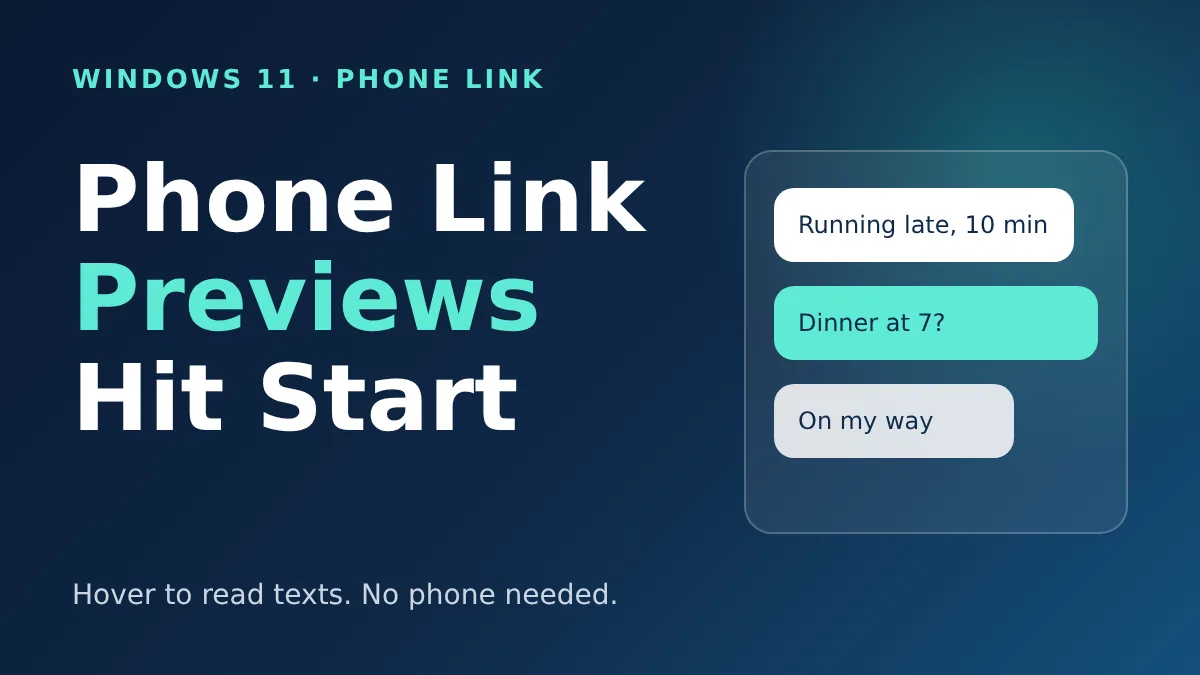
The Windows 11 Phone Link preview has landed in the November update. Hover over a recent text or notification in the Start menu and you can read it without opening Phone Link or reaching for your phone.
It’s rolling out gradually, so your PC may not show it today. Here’s how it works, which builds carry it, and how to switch it off if you’d rather not have message text popping up on your desktop.
Here’s the short version:
- Hover over a recent message or notification in Start’s phone panel to see a preview.
- It comes with the November 2026 update, KB5132061, according to Windows Latest.
- Builds: 26300.9974 for Windows 11 26H2 and 26200.9974 for 25H2.
- Rollout is gradual, so installing the update doesn’t guarantee you’ll see it right away.
- You control it in Phone Link under Settings, then Start menu personalization.
That’s enough for a skimmer. The rest covers the details that decide whether you’ll actually see it.
How the Windows 11 Phone Link preview works
Windows 11 has shown a Phone Link panel inside Start since April 2025. It lists your recent messages and notifications, but until now you had to open the full app to read them.
The new behavior is simple. Point at an item in that panel and a bubble appears with more of the text, so you can check what a message says and move on. Windows Latest describes it as letting you “hover over a recent message or notification to preview it.”
Microsoft first tested this with Insiders. Android Authority reported the test in August 2026, in an experimental Windows 11 build. Windows Central then listed it among the November changes, and it’s now part of the regular update.
Why bother? Most of us check a phone dozens of times a day just to see if something needs attention. A hover preview cuts the small interruptions: you stay in your document, read the line, and decide whether it can wait.
Which builds get it, and why you might not see it yet
The feature arrives with the same November update that carries Windows 11’s other new features. If you already read our November Patch Tuesday breakdown, this is the same release cycle.
After installing, your build number should match one of these:
| Windows 11 version | Build after the update | Rollout |
|---|---|---|
| 26H2 | 26300.9974 | Gradual |
| 25H2 | 26200.9974 | Gradual |
Press Win+R, type winver and hit Enter to see yours. A matching build only means you have the update. Microsoft switches features on in waves, so the hover preview can lag behind.
You also need a phone linked through Phone Link, and a recent version of the app. The sources disagree on the exact minimum: Android Authority cited 1.26021.3.0 for the August test, while Elevenforum lists 1.26062.144.0 for a newer test build. Update the app from the Microsoft Store and you’ll be past both.
Neither report says whether iPhones get the preview. Treat that as unconfirmed for now.
How to turn the previews on or off
The setting lives in Phone Link, not in Windows Settings. Elevenforum says previews are on by default, so this is mostly about switching them off.
- Open the Phone Link app on your PC.
- Click the gear icon to open Settings.
- Choose Start menu personalization.
- Under Notifications, switch Notification previews on or off.
If you don’t see the option, your PC probably hasn’t received the feature yet. The same applies if the toggle is missing after you’ve updated the app.
A quick way to test it: ask a friend to text you, open Start, and hover over the new message in the phone panel. If a bubble appears, you’re set. If nothing happens, check that Phone Link still shows your phone as connected, since previews depend on that connection.
The privacy catch worth a minute of your time
A preview shows message text on your screen. That’s the whole point, and it’s also the downside. This part is my read, not something Microsoft has said.
If you share your screen in meetings, work in a café, or let family use your PC, a hover can reveal a text you meant to keep private. Even a stray mouse movement across Start could surface it.
There’s a reliability wrinkle too. Windows Latest says the phone connection still drops after sleep on some PCs. When that happens, the panel can look empty or stale until Phone Link reconnects.
Other November features are worth a look while you’re updating. We’ve covered the customizable right-click menu separately.
Frequently Asked Questions
Does the Windows 11 Phone Link preview work with iPhone?
The reports we read don’t say. Android Authority didn’t state phone-side requirements, so check Phone Link’s own supported-device notes before counting on it.
Why don’t I see the hover preview after updating?
Microsoft is rolling it out gradually. Confirm your build with winver, update Phone Link in the Microsoft Store, make sure your phone is linked, and check back in a few days.
Can I turn the previews off?
Yes. Open Phone Link, go to Settings, choose Start menu personalization, and switch off Notification previews under Notifications.
Is this update optional?
Windows Latest calls KB5132061 a mandatory security update, so it should arrive through Windows Update. Individual features still appear on Microsoft’s schedule.
My verdict: it’s a handy shortcut at home and a small risk anywhere else. Leave previews on for a personal PC, and flip them off before you present, share your screen, or use a work machine in public. It saves a few seconds a day, but it won’t replace your phone.
Leave a Reply